
 Translate
Access Advocates
An “advocate” is someone who is authorized to represent Access clients during their application process. Advocates can help fill Access applications, check on application status and coordinate communication between applicants and the Access team.
Apply for someone else
-
Step 1: Start the application
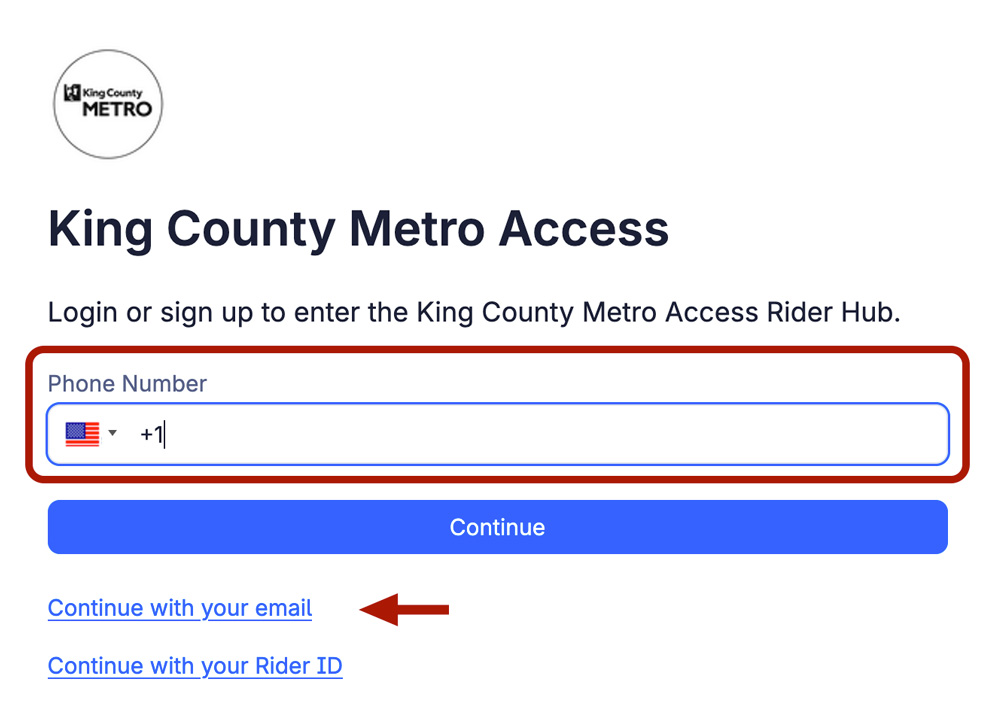
Open the online application (opens in a new tab) and log in with a unique phone number or email. This can be used in the future as a login credential.
 Opens a larger image in a dialog.
You can enter a phone number, or select “Continue with your email” if you prefer to log in that way. -
Step 2: Verify your login
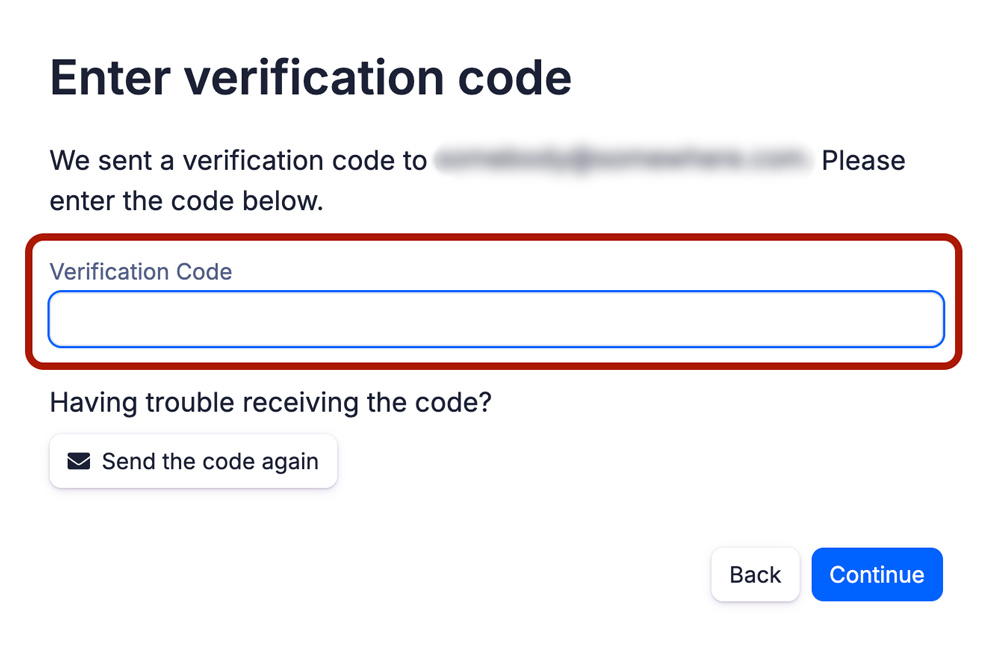
Enter the verification code that is sent to your phone number or email address. Select the “continue” button.
 Opens a larger image in a dialog.
Enter the verification code you received by text message or email, then select the "continue" button to proceed. -
Step 3: Create a profile
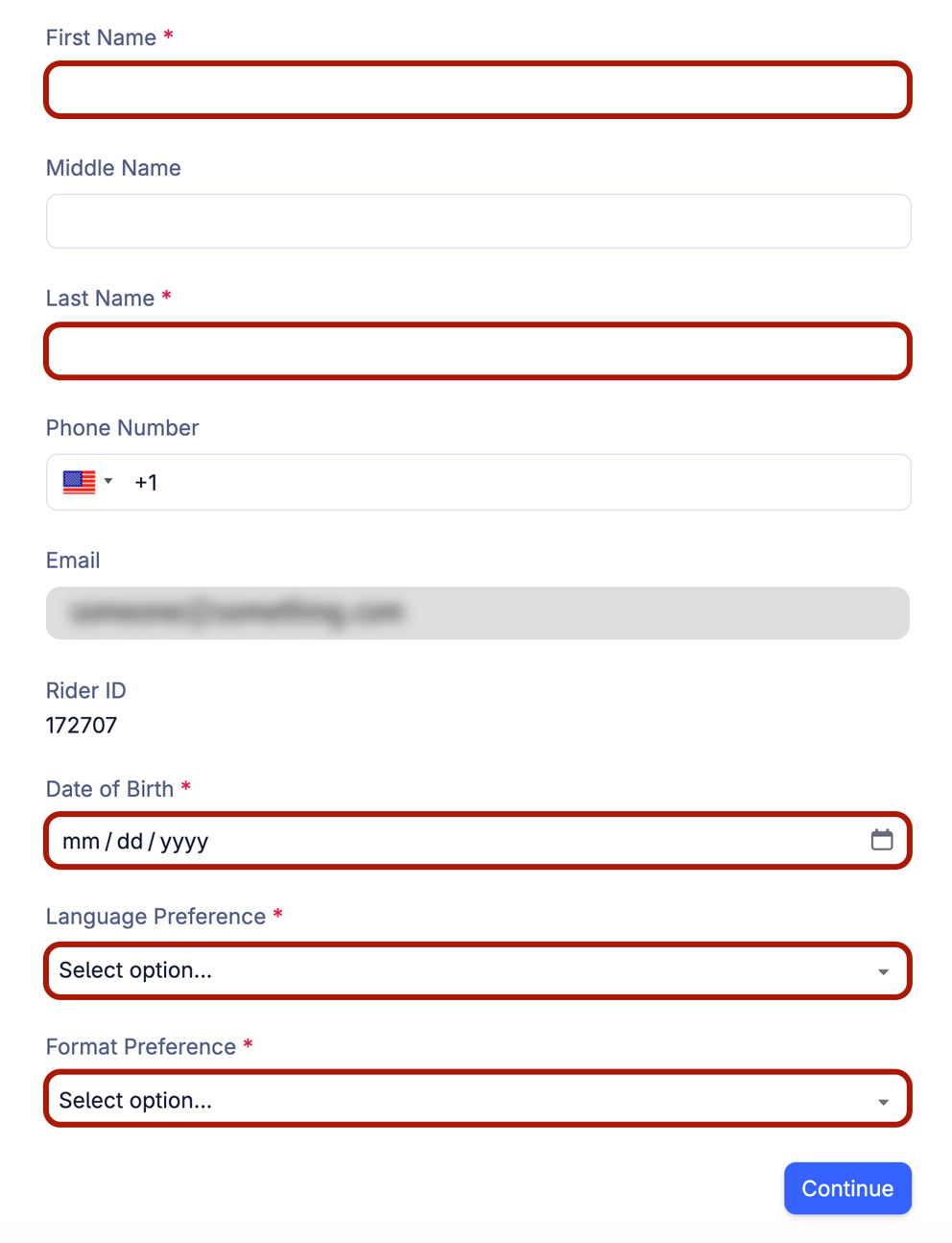
Create a profile for yourself. Enter the required information—First Name, Last Name, Date of Birth, Language Preference and Format Preference. Select the “continue” button.
 Opens a larger image in a dialog.
Complete all required fields marked with an asterisk (*), including Date of Birth, Language Preference and Format Preference. Select the "continue" button when finished.
-
Step 1: Start the application
Open the online application (opens in a new tab) and log in with your credentials (phone number or email as selected when creating your profile).
Opens a larger image in a dialog.
You can enter a phone number, or select “Continue with your email” if you prefer to log in that way. -
Step 2: Verify your login and identity
Enter the verification code that is sent to your phone number or email address. Select the “continue” button.
Opens a larger image in a dialog.
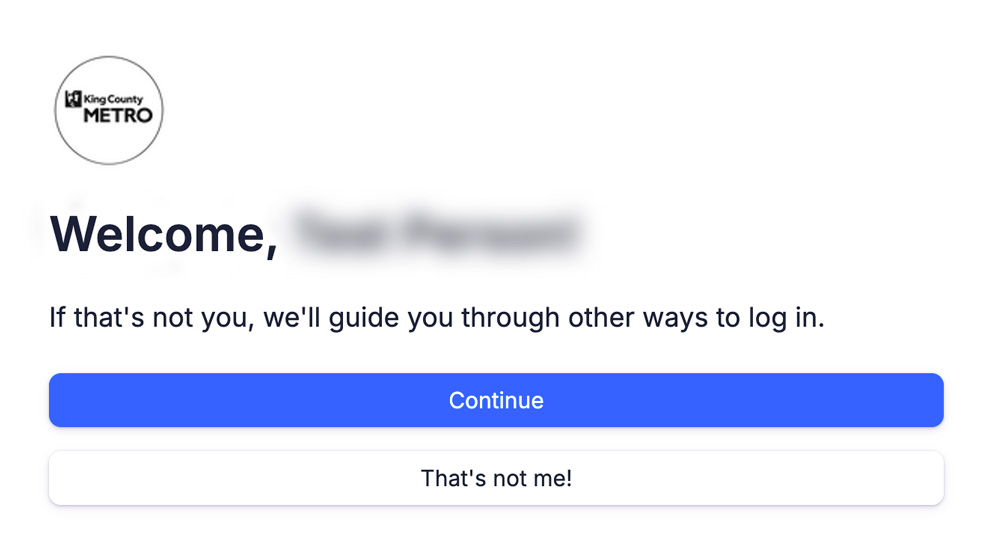
Enter the verification code you received by text message or email, then select "continue" to proceed. Then on the "welcome screen" confirm your identity and select the "continue" button.
 Opens a larger image in a dialog.
On the welcome screen, confirm your identity and select "continue". -
Step 3: Start a new application for someone else
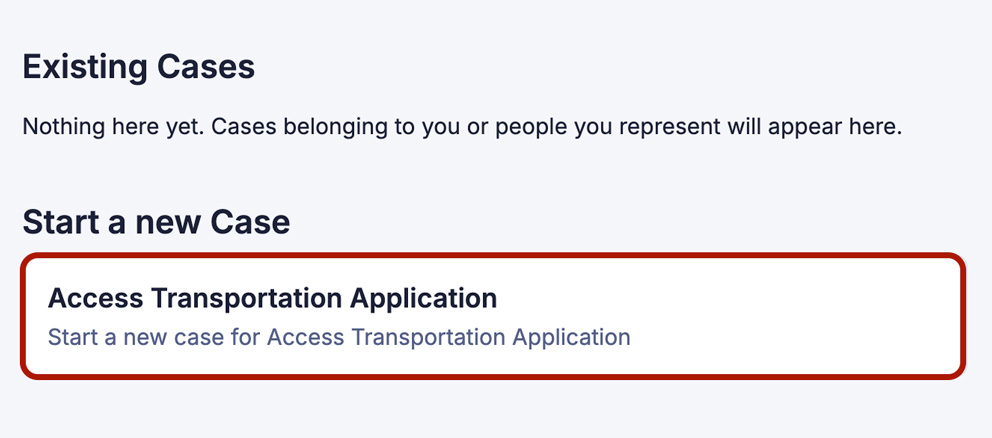
Select "Access Transportation Application" under the "Start a New Case" heading.
 Opens a larger image in a dialog.
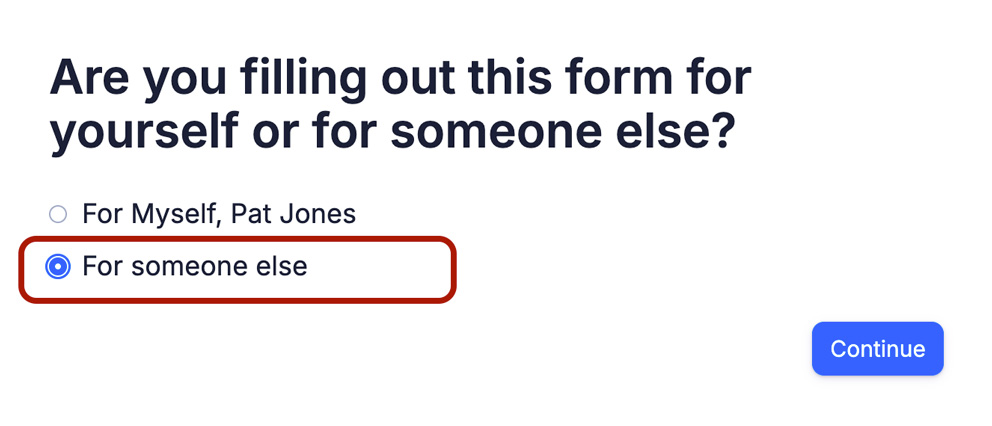
Select "Access Transportation Application" under the "Start a New Case" heading. Then on the next screen select "For someone else" and the "continue" button.
 Opens a larger image in a dialog.
Select "For someone else," then select the "continue" button to proceed. -
Step 4: Link the applicant account or create a new one
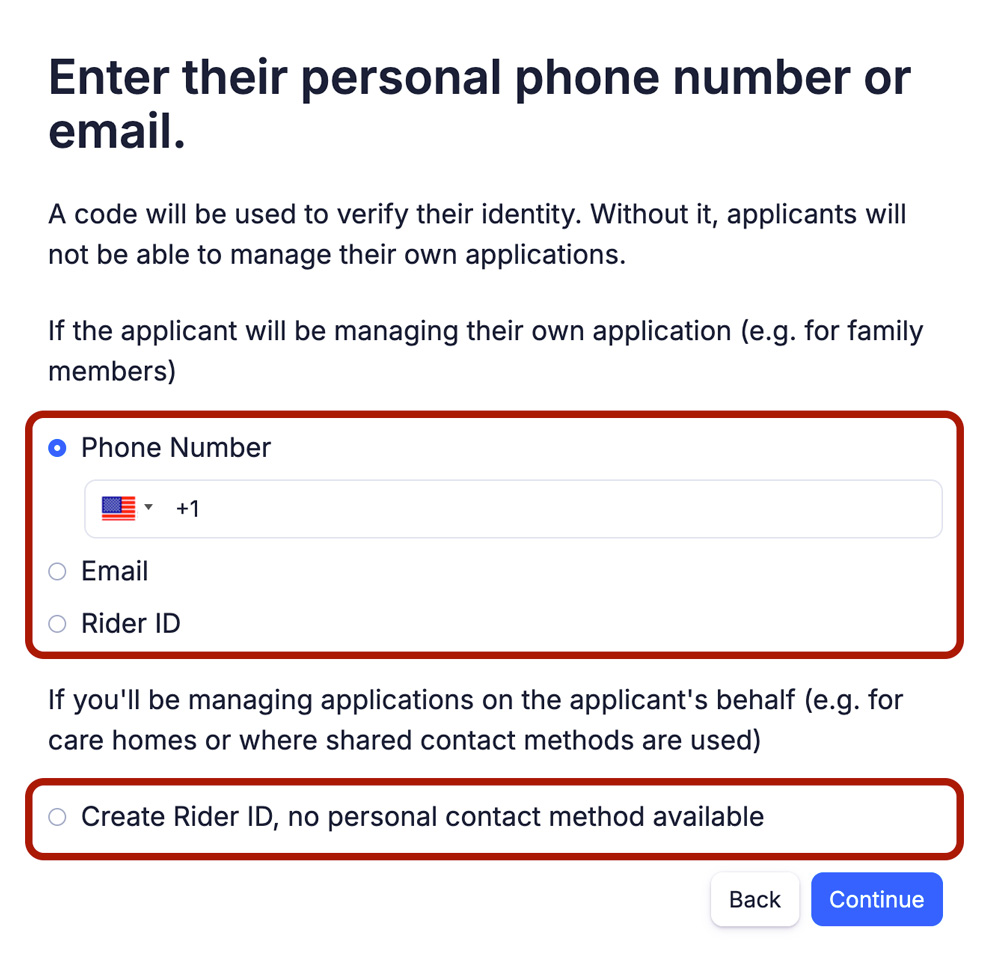
If the applicant is a returning Access client, you need to link to their profile and prove you are an authorized advocate by verifying their credentials (similar to how you verified your credentials when logging in).
Alternatively, if the applicant is a new Access client, you can select "Create Rider ID" to create a new profile.
 Opens a larger image in a dialog.
Enter the applicant’s phone number or email address to link their profile, or select "Create Rider ID" to create a new profile. -
Step 5: Complete the application
Complete the online self-assessment and select a method to complete the eligibility application.
-
Step 1: Start the application
Open the online application (opens in a new tab) and log in with your credentials (phone number or email as selected when creating your profile).
Opens a larger image in a dialog.
You can enter a phone number, or select “Continue with your email” if you prefer to log in that way. -
Step 2: Verify your login and identity
Enter the verification code that is sent to your phone number or email address. Select the “continue” button.
Opens a larger image in a dialog.
Enter the verification code you received by text message or email, then select "continue" to proceed. Then on the "welcome screen" confirm your identity and select the "continue" button.
Opens a larger image in a dialog.
On the welcome screen, confirm your identity and select the "continue" button. -
Step 3: View your existing applications
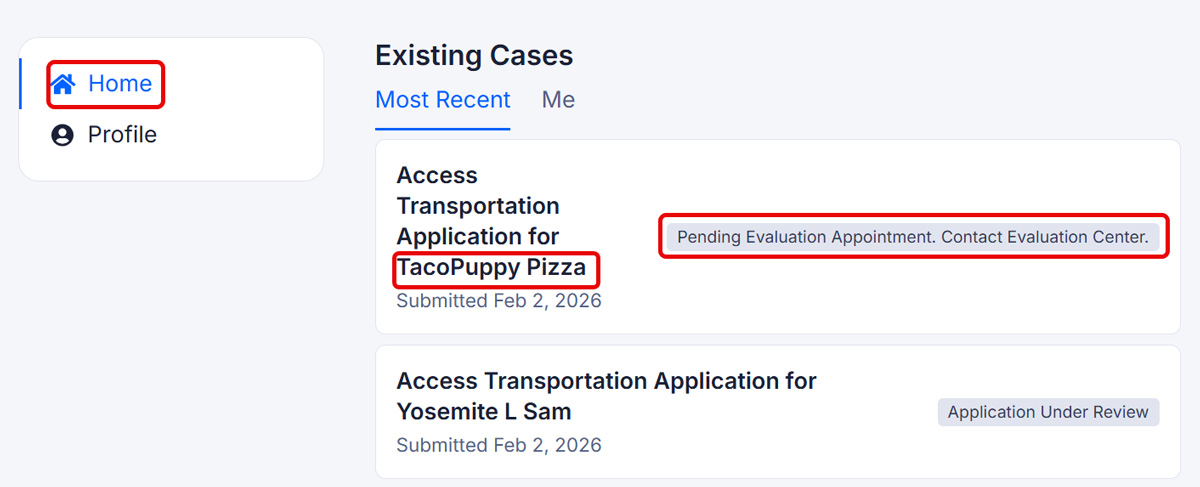
On the home screen, you can see a list of all “existing cases” that you have submitted, who you have submitted them for and their status.
 Opens a larger image in a dialog.
On the home screen, review your existing cases to see who the application was submitted for and its current status.